
Posts
Delegating Permission Management in SQL Server: Roles vs WITH GRANT OPTION
Background
In SQL Server/Azure SQL, database-level permissions are almost always handled by either the database owner (which has the dbo-identity) or members of the db_owner or db_securityadmin-database roles.
Here you can learn more about the differences: Principals (Database Engine), Database-Level Roles.
Both roles can GRANT/DENY/REVOKE any permission within a database. Since that makes members of these roles super powerful, their membership should always be tightly controlled and audited. (also see: Security concept: Audit Trail).
Consequently, most customers just keep this power to the main Administrators-group.
However, there are cases where it is useful to enable a set of non-admin users – let’s call them LowPermission-Managers – to work in a more self-sufficient way and enable them to grant some permissions to other users without the need to involve “the Administrators”.
The emphasis is on “some permissions” asthis only makes sense for low privileges. Making the LowPermissionManagers members of db_owner or db_securityadmin -roles would defeat the purpose.
For example, it can be useful to allow the LowPermissionManagers to grant the SELECT, INSERT, UPDATE and DELETE permissions to other users. But not allow other permissions like ALTER or CONTROL and so on.
To put things into perspective,here is an overview of the extensive permissions that the SQL Server engine ships with: Permissions (Database Engine)
You will also see me using the term “securable”. In a nutshell, a securable is the object on which a user (aka the “grantee”) will get certain permissions. (Securables – SQL Server | Microsoft Learn)
In other words, we want to allow someone else to take over some of the work of granting privileges. This concept is also called “delegation”. (Here you can read more on Delegation of Authority.)
SQL Server/Azure SQL has a rich permission system, and I want to show you two methods to accomplish delegation of permission-management.
Using roles for delegating permission-management on a schema
In general, when granting permissions to users in a database, we should always use roles instead of granting permissions to individual users. This is the same best practice used for Windows Active Directory and Entra ID groups (formerly known as Azure Active Directory: “Azure AD is becoming Microsoft Entra ID “).
Note
In Windows Active Directory the acronyms AGDLP (Account -> Global group -> Domain Local group -> Permission) and AGLP are well known amongst administrators.
In SQL Server the acronym URP (User -> Role -> Permission) or LURP (Login -> User -> Role -> Permission) is less commonly used but is based on the similar concept: to grant permissions not to individual accounts but to a collection, strored as group or role.
In my example we have a database which contains several user-defined schemas (Ownership and user-schema separation in SQL Server – SQL Server | Microsoft Learn). The schema called “SensorData” contains numerous tables.
The database administrator (let’s call that person DBA) does not want to be bothered with managing simple read-access to this specific schema and all the tables and views it contains.
Instead, this will be delegated to a different user, Alejandra.
To set this up, the DBA (1) creates a database role called “role_SensorDataUsers” and (2) gives that role the SELECT-permission for the whole SensorData-schema.
CREATE ROLE role_SensorDataUsers
GO

GRANT SELECT
       ON SCHEMA::SensorData
       TO role_SensorDataUsers
GO
Now instead of adding every other user that needs access to this schema, the DBA (3) delegates the permission to add members for this specific database role – and no other role! – to Alejandra, who he trusts with this task.
In SQL Server we have the ALTER ROLE permission, which can be granted on a per-role basis. Granting the ALTER ROLE permission allows the grantee, Alejandra, to add and remove (drop) members to and from this role.
GRANT ALTER
       ON ROLE::role_SensorDataUsers
       TO Alejandra
Now, Alejandra can run the following statement to (4) add Guillermo, a new user, to the role_SensorDataUsers-role:
ALTER ROLE role_SensorDataUsers
       ADD MEMBER Guillermo
Result: Guillermo can now SELECT from any table or view contained in the schema SensorData.
When it comes to Alejandra: all she can do is add or drop other users to and from this role. She cannot change the permissions of the role or drop it.
Note
The ALTER ROLE-permission also includes the ability to change the name of the role. This is something to be aware of. Renaming may not sound dangerous, but confusion can lead to mistakes. Therefore, make sure the ALTER ROLE-statement is being audited (as it should be anyways).
Finally, when the time comes, Alejandra can remove Guillermo from this role:
ALTER ROLE role_SensorDataUsers
       DROP MEMBER Guillermo
With that, the database administrator does not need to bother with granting specific permissions on specific schemas and can focus on higher privileges and user-creation.
This is a diagram that depicts the setup:

Using the WITH GRANT OPTION of the GRANT statement to delegate management of multiple permissions on schema-level
Imagine we not only want to delegate the management of just the SELECT-permission, but also INSERT, UPDATE and DELETE on a given schema to a different user: Alejandra. And we want Alejandra to decide which of these 4 permissions to grant herself.
We could create 4 roles of course, each with one of the 4 permissions only, and make Alejandra manager of the 4 roles, following the previous example.
But there is another option which I would like to demonstrate:
Instead of having 4 roles, in this case we could make use of the WITH GRANT OPTION of the GRANT statement, documented here: GRANT (Transact-SQL) – SQL Server | Microsoft Learn
When using the GRANT statement together with the WITH GRANT OPTION, we are allowing the grantee to pass the very same permissions on to other users.
This is how it looks using the previous example as a baseline.
We could grant Alejandra the respective permissions directly but, following best practices, the DBA (1) creates a role for this purposein a very different way than in the previous example.
CREATE ROLE role_SensorDataUserManager
GO
The DBA (2) grants this role the 4 permissions which he wants to delegate the management for:
GRANT SELECT, INSERT, UPDATE, DELETE
       ON SCHEMA::SensorData
TO role_SensorDataUserManager WITH GRANT OPTION
Now the DBA (3) makes Alejandra a member of this role:
ALTER ROLE role_SensorDataUserManager
       ADD MEMBER Alejandra
At this point I want to point out how SQL Server stores permissions in metadata. To do that we can run the following T-SQL:
SELECT * FROM sys.database_principals
       WHERE NAME IN ('Alejandra','Guillermo','role_SensorDataUserManager')

SELECT * FROM sys.database_permissions
where grantee_principal_id IN (5, 6, 7)   -- IDs of the 3 principals used in this demo
This is the result:

Note that (A) Alejandra (principal_id = 5) has no permissions on her own. Instead, the role role_SensorDataUserManager (principal_id = 7, marked red in my image) has the permissions. And (B) The permissions that it has are not simply “GRANT” but really “GRANT WITH GRANT OPTION” (marked red in my image).
This is how this looks like in SQL Server Management Studio UI:

As a result, not only can Alejandra do what the role allows: SELECT, INSERT, UPDATE, DELETE on any table or view within the schema SensorData, but in addition to that, she can decide to give any of these 4 permissions to someone else – without making that other user member of the role role_SensorDataUserManager:
GRANT INSERT, UPDATE ON SCHEMA::SensorData
       TO Guillermo
       AS role_SensorDataUserManager
If you look at this statement, you see that it contains the AS-Clause of the GRANT-statement.
This is important, because without this clause Alejandra cannot grant the permissions to Guillermo. When utilizing the power of the WITH GRANT OPTION which is granted to a role, and not the user-account directly, it is required to explicitly state the principal which is used for the GRANT.
Because behind the scenes, SQL Server always stores the grantor’s principal_id in metadata. And since the permission could come from different roles it needs to be specified (a good example of explicitness, which is fundamental to security controls, in my eyes).
Let’s look at sys.database_permissions again:
SELECT * FROM sys.database_permissions
where grantee_principal_id = 6    -- Guillermos principal_id on my system
These are the 2 permissions that have been granted to Guillermo (grantee_principal_id = 6, marked green in my image) in the name of the role role_SensorDataUserManager (principal_id = 7, marked red in my image). This time the role is the grantor, not the grantee.
Result: Guillermo can now run the INSERT and UPDATA-statements against any table or view contained in the schema SensorData.
This is a diagram that shows this approach:

Of course, Alejandra can also REVOKE the permissions.
Here again it is required to call out the principal name from which the permissions originate. Otherwise, the SQL engine cannot find the right permission-entry to remove.
REVOKE INSERT, UPDATE ON SCHEMA::SensorData
       TO Guillermo
       AS role_SensorDataUserManager
Important
When using the GRANT… WITH GRANT OPTION statement it is important to have a good understanding on how the permissions are stored. You may know that when database users own objects such as tables within the database, those objects cannot be dropped as long as they are owned by the user which you want to drop In such cases you either drop the objects completely, or change their ownership to a different user account.
The same applies to permission grantors. In my scenario the permission was saved using the role’s principal-id. Hence the role cannot be dropped before the permissions that were granted under its authority are revoked (not denied either).
The error message in such an attempt would be:
Msg 15284, Level 16, State 1, Line 96
The database principal has granted or denied permissions to objects in the database and cannot be dropped.
Summary
I have shown 2 methods for delegation of permission-management.
Generally, I always strongly recommend exclusively working with roles that have permissions and absolutely avoid granting permissions on a user-level. This makes reporting and auditing much easier and avoids problems down the road.
However, at times, it can be useful to explicitly save who granted which permissions in metadata, or the use of roles may not always be practical. The GRANT WITH GRANT OPTION is a niche player for sure, but it’s good to have alternatives when needed.
Happy securing
Andreas
Thank you to the following people for help with this article:
Practical use cases: Ralf Dietrich, Managing director Sarpedon Quality Lab
Technical correctness: Steven Gott (Principal Software Engineer, Microsoft)
Language: Tameika Lawrence (Program Manager SQL Security)
Use Microsoft Purview to provide at-scale access to performance data in Azure SQL and SQL Server
In prior articles we have covered how you can use Microsoft Purview as an inexpensive solution to grant read access to SQL’s system metadata information. You achieve this if you use Microsoft Purview as a dedicated solution for DevOps policies (see details here).
In a nutshell, Microsoft Purview DevOps policies are a central, cloud-based experience used to provision access at-scale to IT/DevOps personnel, so that that they can monitor the health and performance of SQL systems, but without giving them access to your data’s crown jewels. DevOps policies are already available for SQL Server 2022, Azure SQL Database and soon for Azure SQL Managed Instance.
One of the most attractive aspects of Microsoft Purview DevOps policies is their scalability. First of all, you can grant and review all access to SQL data sources from a central place: The Purview portal, or via the API if you prefer programmatic access. Second, policies can be applied to entire subscriptions or resource groups, and by that get enforced in all underlying data sources – at scale. In other words, if you have 100 SQL servers with each containing 10 databases within one Resource Group “Project Green”, assigning a role to this Resource Group will allow the assigned AAD users to access any of the 1000 databases without requiring additional SQL permissions or Logins to be created locally. More information here.
Microsoft Purview DevOps policies support two roles: SQL Performance Monitor and SQL Security Auditor. When you configure a DevOps policy in Microsoft Purview by specifying one of these two roles, the subjects specified in the policy (a list of Azure AD principals), will be granted read access to an extensive number of system views and other commands.
This article provides examples of common system views and -functions (DMVs and DMFs) and other objects that are accessible for the SQL Performance Monitor role.
Background on SQL metadata
If you don’t have much experience with SQL Server, you may wonder, what these two roles, SQL Performance Monitor and SQL Security Auditor accomplish and what exactly DMVs or DMFs are.
So let’s start with some basics.
– If you already know how system metadata in SQL is organized, feel free to skip this section.
There are two types of system information SQL engine tracks:
- Object metadata that is persisted to the dababase, which keeps track of objects in a database (e.g., tables via sys.tables or views via sys.views), as well as classic SQL Users and permissions granted within a database. This type of information is stored in catalog views.
- Dynamic metadata, which is more volatile. (Some of it survives restarts of the service, other is completely memory-based and gets cleaned-up on restart. I.e., Wait statistics via sys.dm_os_wait_stats) This dynamic metadata is accessible via so called Dynamic Management Views (DMVs) or Dynamic Management Functions (DMFs).
– Note that I did not say “it’s stored within”, because this data is often only generated at query-time and only then rendered into a rowset for retrieval.
As a general rule, all the system views starting with dm_ belong to the dynamic category – and all others are catalog views. There are some exceptions, hybrid scenarios, but generally this is sufficient as a differentiator.
SQL has a native hierarchical permission system that differentiates between static and dynamic metadata. (I.e., permissions with the term “DEFINITION” are required to view static catalog views vs permissions with the term “SATE” are for dynamic metadata)
The role definitions in Microsoft Purview DevOps policies cover access to both the static and dynamic metadata.
“Actions”, which are part of the Purview policy definition, serve as a “flat” permission system which the SQL Server engine uses in parallel to the native (hierarchical) SQL permission system when evaluating effective permissions.
Actions vs permissions
Here you can read more about the two permission systems and what differentiates “actions” from permissions: Revamped SQL Permission system for Principle of Least Privilege and external policies – internals
The DevOps policies that Microsoft Purview offers hide the complexity behind the scenes. Nevertheless, to make it easier to get accustomed to the “new world” of external permissions, there is typically a 1:1 relationship between the “external” actions and the SQL native permissions.
Alright, I hope that was not too confusing. Seeing it in action will make it easier to comprehend, I promise:
What does SQL Performance Monitor give access to?
The SQL Performance Monitor role is meant for users that require access to a SQL server or database for performance investigation purposes.
Background to performance monitoring tools
In SQL Server performance investigation is done with a variety of tools. Some are external to the SQL engine, like Windows Performance Monitor or Event Tracing for Windows, and some are internal to SQL such as the discussed Dynamic Management Views (and -Functions) and Extended Events.
The SQL Performance Monitor role allows access to 3 different kinds of objects in SQL:
1) System Views:
All DMVs and DMFs with the exception of those which contain security-sensitive information. (Those are instead covered by the SQL Security Auditor role.)
These are the actions (similar to permissions) that are used for this:
- /Sqlservers/SystemViewsAndFunctions/ServerPerformanceState/Rows/Select
- /Sqlservers/Databases/SystemViewsAndFunctions/DatabasePerformanceState/Rows/Select
- /Sqlservers/SystemViewsAndFunctions/ServerGeneralMetadata/Rows/Select
- /Sqlservers/Databases/SystemViewsAndFunctions/DatabaseGeneralMetadata/Rows/Select
For those familiar with the native SQL permission system: These actions map to the SQL permissions VIEW DATABASE PERFORMANCE STATE, VIEW SERVER PERFORMANCE STATE, VIEW PERFORMANCE DEFINITION and VIEW ANY PERFORMANCE DEFINITION respectively.
2) Extended Events:
In addition to these SELECT-actions for system views, the Performance Monitor role also allows
Extended Event session management (create and drop sessions, change session definition, start and stop sessions).
Since Extended Events are available at both server-scope (SQL Server and for Azure SQL Managed Instance) and database-scope (Azure SQL Database and Managed Instance), this role includes access to both scopes.
Included server-scope XEvent actions:
- Microsoft.Sql/Sqlservers/ExtendedEventSessions/Create
- Microsoft.Sql/Sqlservers/ExtendedEventSessions/Options/Alter
- Microsoft.Sql/Sqlservers/ExtendedEventSessions/Events/Add
- Microsoft.Sql/Sqlservers/ExtendedEventSessions/Events/Drop
- Microsoft.Sql/Sqlservers/ExtendedEventSessions/State/Enable
- Microsoft.Sql/Sqlservers/ExtendedEventSessions/State/Disable
- Microsoft.Sql/Sqlservers/ExtendedEventSessions/Drop
- Microsoft.Sql/Sqlservers/ExtendedEventSessions/Target/Add
- Microsoft.Sql/Sqlservers/ExtendedEventSessions/Target/Drop
Included database-scope XEvent actions:
- Microsoft.Sql/Sqlservers/Databases/ExtendedEventSessions/Create
- Microsoft.Sql/Sqlservers/Databases/ExtendedEventSessions/Options/Alter
- Microsoft.Sql/Sqlservers/Databases/ExtendedEventSessions/Events/Add
- Microsoft.Sql/Sqlservers/Databases/ExtendedEventSessions/Events/Drop
- Microsoft.Sql/Sqlservers/Databases/ExtendedEventSessions/State/Enable
- Microsoft.Sql/Sqlservers/Databases/ExtendedEventSessions/State/Disable
- Microsoft.Sql/Sqlservers/Databases/ExtendedEventSessions/Drop
- Microsoft.Sql/Sqlservers/Databases/ExtendedEventSessions/Target/Add
- Microsoft.Sql/Sqlservers/Databases/ExtendedEventSessions/Target/Drop
3) DBCC Commands
finally, this role also covers access to several DBCC-Commands that are used for system analysis:
- Microsoft.Sql/Sqlservers/Databases/DBCCs/ViewDatabasePerformanceState/Execute
- Microsoft.Sql/Sqlservers/DBCCs/ViewServerPerformanceState/Execute
Currently the following DBCC commands are covered by these 2 actions:
- DBCC SQLPERF(NETSTATS)
- DBCC SQLPERF(LOGSPACE)
- DBCC INPUTBUFFER
- DBCC OPENTRAN
Practical examples
Let’s look at some specific examples of what a user assigned to the SQL Performance Monitor role can do.
Hint
If you are not familiar with Performance analysis using DMVs, please have a look here for a start:
Monitor and Tune for Performance – SQL Server | Microsoft Learn
Monitor performance using DMVs – Azure SQL Database | Microsoft Learn
In essence, the Performance Monitor role should suffice for all typical queries against DMVs for performance troubleshooting.
For example, with this policy assigned one can…
…query the system parameters to understand your system:
SELECT * FROM sys.configurations

SELECT * FROM sys.dm_os_sys_info
objects used for these queries:
… do Wait-Stats analysis to detect bottlenecks:
SELECT TOP 50	-- adjust to your needs
	  wait_type
	, wait_time_ms/ 1000.0 AS wait_time_s
	, (wait_time_ms - signal_wait_time_ms) / 1000.0 AS resource_wait_time_s
    , signal_wait_time_ms / 1000.0 AS signal_wait_time_s
    , waiting_tasks_count
FROM sys.dm_os_wait_stats
WHERE [wait_type] NOT IN (N'SLEEP_TASK')
-- here you should filter out irrelevant wait-types
ORDER BY wait_time_s DESC
objects used for this query:
… see which queries are currently running on your system (including those which are blocked or rolling back):
SELECT
	  dm_exec_sql_text.text	AS QueryText
	, dm_exec_requests.*
FROM sys.dm_exec_requests
OUTER APPLY sys.dm_exec_sql_text(plan_handle) AS dm_exec_sql_text
WHERE status IN ('running', 'suspended', 'rollback')
objects used for this query:
… analyze current blocking:
SELECT
	  dm_tran_locks.resource_type
	, DB_NAME(dm_tran_locks.resource_database_id)	AS [database]
	, dm_tran_locks.resource_associated_entity_id
	, dm_tran_locks.request_mode
	, dm_tran_locks.request_session_id
	, dm_os_waiting_tasks.blocking_session_id
	, dm_os_waiting_tasks.wait_duration_ms / 1000	AS [wait time in seconds]
	, dm_exec_sql_text.text							AS blocked_statement
FROM sys.dm_tran_locks				AS dm_tran_locks
INNER JOIN sys.dm_os_waiting_tasks	AS dm_os_waiting_tasks
	ON dm_tran_locks.lock_owner_address = dm_os_waiting_tasks.resource_address
INNER JOIN sys.dm_exec_requests		AS dm_exec_requests
	ON dm_tran_locks.request_session_id = dm_exec_requests.session_id
CROSS APPLY sys.dm_exec_sql_text(dm_exec_requests.[sql_handle]) AS dm_exec_sql_text
objects used for this query:
- sys.dm_tran_locks (Transact-SQL)
- sys.dm_exec_requests (Transact-SQL)
- sys.dm_exec_sql_text (Transact-SQL)
Hint
A more complete analysis can be done with a script that Bob Ward provides in his Azure workshop, here:
… analyze memory usage:
SELECT TOP(25)
	  [type] AS [Memory Clerk Type]
	, pages_kb / 1024.0  AS pages_mb
	, name
	, memory_node_id
FROM sys.dm_os_memory_clerks
ORDER BY pages_kb DESC
objects used for this query:
… analyze file-usage and -performance (SQL Server and Azure SQL Managed Instance):
SELECT
	  DB_NAME(master_files.database_id)	AS DatabaseName
	, master_files.name					AS FileName
	, master_files.type_desc
	, master_files.size
	, master_files.growth
	, dm_io_virtual_file_stats.*
FROM sys.master_files					AS master_files
INNER JOIN sys.dm_io_virtual_file_stats(NULL, NULL)		AS dm_io_virtual_file_stats
	ON master_files.database_id		= dm_io_virtual_file_stats.database_id
	AND master_files.file_id			= dm_io_virtual_file_stats.file_id
objects used for this query:
… analyze index-usage and -fragmentation:
-- Index-usage statistics
SELECT
	  DB_NAME(database_id)	AS DatabaseName
	  , *
FROM sys.dm_db_index_usage_stats
-- Index fragmentation
-- this query needs to be run per database:
SELECT
	  DB_NAME()					AS DatabaseName
	--, OBJECT_NAME(object_id)		AS ObjectName
	--, indexes.name				AS IndexName
	--, indexes.type_desc
	, dm_db_index_physical_stats.*
FROM sys.dm_db_index_physical_stats(DB_ID(), NULL, NULL, NULL, 'LIMITED') AS dm_db_index_physical_stats
INNER JOIN sys.indexes AS indexes
	ON dm_db_index_physical_stats.object_id = indexes.object_id
	AND dm_db_index_physical_stats.index_id = indexes.index_id
objects used for these queries:
- sys.dm_db_index_usage_stats (Transact-SQL)
- sys.dm_db_index_physical_stats (Transact-SQL)
- sys.indexes (Transact-SQL)
… use the Query Store to analyze historical query runtime information:
- Although the Query Store node in Object explorer currently is not visible for Users with only external policy-based permissions, the query store DMVs are accessible just as any other DMV.
Here is a query that combines information about query plans, the query details and query-texts for a start:
SELECT *
FROM sys.query_store_plan				AS query_store_plan
INNER JOIN sys.query_store_query			AS query_store_query
    ON query_store_plan.query_id = query_store_query.query_id
INNER JOIN sys.query_store_query_text	AS query_store_query_text
    ON query_store_query.query_text_id = query_store_query_text.query_text_id;
objects used for this query:
- sys.query_store_plan (Transact-SQL)
- sys.query_store_query_text (Transact-SQL)
- sys.query_store_query (Transact-SQL)
For an overview of the Query Store system views that can be used for analysis and how to go about it, have a look here:
- Query Store catalog views (Transact-SQL) – SQL Server | Microsoft Learn
- Monitor performance by using the Query Store – SQL Server | Microsoft Learn
All the example queries can be downloaded at the end of this article.

Currently approximately 700 DMVs and Catalog Views are available for the SQL Performance Monitor role.
Extended Event sessions are very task-specific and besides the built-in system sessions differ very much between systems. Therefore, I am not including an example here.
If you are on SQL Server 2022 on Arc what you can test immediately once you have been granted access to via the Purview role SQL Performance monitor, is using the built-in XEvent sessions “Standard” and “TSQL” which show up in the Object Explorer on bottom as you can see in the following screenshot.

If you are not familiar with Extended Events, please start here:
- XEvents overview – SQL Server, Azure SQL Database, and Azure SQL Managed Instance – SQL Server | Microsoft Learn
- Extended events – Azure SQL Database | Microsoft Learn
- Quickstart: Extended Events in SQL Server – SQL Server | Microsoft Learn
Current Limitations of the SQL Performance Monitor
In all fairness I should point out the current gaps, that may or may not matter to you:
- Currently we only support tables and views with Purview policies. That means that no stored procedures can be executed based on external policies. Be it system stored procedures or user-created procedures.
- Access to msdb-specific system tables and -views is not supported yet.
- In SQL Server and SQL Managed Instance that is where backup information and of course SQL Agent Job-information is stored and applies. Azure SQL Database does not have the msdb database.
- XEvents: since currently Purview policies do not include actions for Credentials (which store information to access files), the use of the file-target is not possible in Azure SQL Database (and MI) via policies alone.
All memory-targets (ring buffer, event counter, event pairing, histogram) are usable though.
Third-part tooling-support
Most vendor-tools require access to more than just DMVs. Some unfortunately still use SQL Profiler (the deprecated predecessor of XEvents – which is why it is not supported by Puirview actions at all), some even require sysadmin-permissions.
As soon as more actions are added, most vendors should be able to support Purview based policies to support access at scale for your whole SQL Environment, without the micro-management of Logins.
Examples of script-tools fully runnable with access provided solely via RBAC roles
Performance-Analysis does not always require a sophisticated software. In fact, for most of my consultant-work I have relied on my own scripts to extract the necessary data as either there was no tool available, or the chosen tool was not providing the information that I required.
Here are some scripts that I have tested using Purview-backed access via the SQL Performance Monitor role exclusively:
MVP Glenn Berry provides a large set of queries that cover SQL Server internals from A to Z at https://glennsqlperformance.com/resources/
Note
The Azure SQL Database Diagnostic Information Queries run without any errors against a Purview enabled Azure SQL Database.
The SQL Server 2022 Diagnostic Information Queries do throw a couple of errors which are attributed to accessing the msdb database, the SQL Server errorlog and the registry via extended stored procedures. Those are the only 3 types of queries that fail with a permission error. All other queries return proper results.
Also, the Microsoft SQL Tiger team (Toolbox repository for Tiger team (github.com)) has published a couple of scripts which you can run right away from a connection that is solely granted via RBAC:
- tigertoolbox/Waits-and-Latches · microsoft/tigertoolbox (github.com)
- tigertoolbox/Index-Information · microsoft/tigertoolbox (github.com)
- tigertoolbox/Query-Performance · microsoft/tigertoolbox (github.com)
Obviously, all the listed gaps are on our radar. But do let us know if anything else appears to be missing.
Hopefully this article is useful for those testing access to SQL via Purview policies.
Happy database-monitoring
Andreas and Vlad
Thank you for reviewing:
Dimitri Furman, Principal Program Manager
Troubleshooting external data and access policies in Azure SQL and SQL Server
In this article you will find an overview of all the new metadata that was added to support customers using external data and access Policies from Microsoft Purview. You will find this interesting if you are in a technical role and have access to a SQL database, for example as a DBA or developer or need to create reports on who has access to your systems.
Background
If you are one of the early adopters of the new Microsoft Purview based data and access policies (a.k.a. external policies) you are already familiar with what it does and how it works.
For all others I recommend looking at the following articles:
Private Preview: controlling access to Azure SQL at scale with policies in Purview
Microsoft Purview DevOps policies enter GA: Simplify access provisioning while protecting your data
In this article I provide some background on the architecture of the Purview Integration and what “actions” in the context of policy based access control mean compared to SQL permissions: Revamped SQL Permission system for Principle of Least Privilege and external policies – internals
With these fundamentals established let’s take a look under the hood of SQL Server and what it can tell us about active external policies.
How to check if External Policies are enabled
The first and most basic question is: “does my SQL Server currently support external policies at all?” or, in other words, “is this functionality activated and could policies that are defined in Microsoft Purview grant access to anyone on this server?”
There are 2 ways to do that, one in T-SQL and one via Powershell.
In T-SQL we have the function SERVERPROPERTY() with a new parameter: “IsExternalGovernanceEnabled”.
This is how it’s queried:
SELECT SERVERPROPERTY(‘IsExternalGovernanceEnabled’)
If the result is “1” that means this server is currently listening for external policies. It does not mean there are actual policies in place that address this server, but if there are, they would be effective.
Result “0”, the default simply means this Server is not enabled for this feature and would not download any policies even if policies have been defined for this server.
Note on Preview-version
In the Azure SQL Database where this feature currently is in Preview, the parameter is called “IsExternalPolicybasedAuthorizationEnabled” – so you need to use SERVERPROPERTY(‘IsExternalPolicybasedAuthorizationEnabled’)
Below this article I have listed all object names that are used in the Preview version.
In PowerShell you can use the following command:
Invoke-AzRestMethod -Method GET -Path “$($server.ResourceId)/externalPolicyBasedAuthorizations/MicrosoftPurview?api-version=2021-11-01-preview”
The parameter $server requires your Azure SQL Database’s logical server name.
It will return true or false, following the same logic as above, meaning that “true” means the feature is enabled.
There is one other way to determine if your server has this feature enabled and that is using a new DMV named sys.dm_external_policy_cache.
This DMV will always contain one row if the server has the feature enabled.
If the DMV returns an empty resultset, in other words zero rows, the feature is not enabled:
SELECT *
FROM sys.dm_external_policy_cache
A server with this feature enabled would have a resultset like the following:
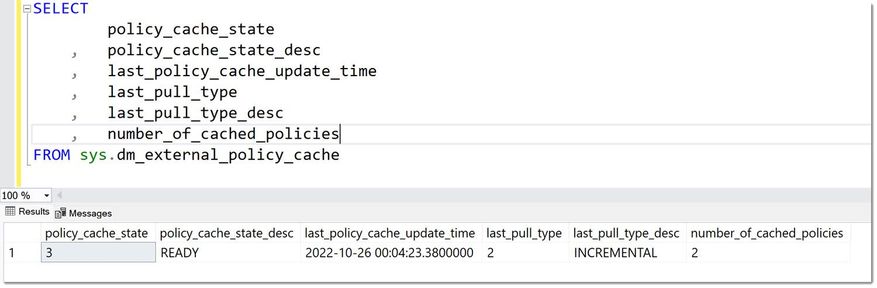
That leads us to another topic:
Are the policies on my server the most current?
Policies that are defined and published in Purview are downloaded periodically, not continuously. On average it will take about 2-3 minutes for a new policy to appear in SQL.
The DMV sys.dm_external_policy_cache that I introduced will let you know the last time in UTC that the SQL engine checked and, if necessary, downloaded all policies that are applicable to this server.
It also tells you the number of policies that have been downloaded and by that currently apply to this server.
How to ensure policies are fresh during troubleshooting
Since it can take a few minutes for freshly published policies to be downloaded to the SQL Server, to help speed up troubleshooting and testing, we provide you a system stored procedure that forces the engine to download any new policies when run: sys.sp_external_policy_refresh (BOL: sp_external_policy_refresh (Transact-SQL))
It updates the Purview cache on the whole instance, for every database.
EXEC sys.sp_external_policy_refresh @type = ‘Reload’ — aka FULL
“Reload” forces the engine to flush and “Reload” the policy cache entirely.
Note
If there are any ongoing pull requests, by the background task or by another user, the requested pull waits until the former task is finished and starts a new pull. This ensures that the result of calling this procedure explicitly always results in a fresh pull (the former may have been requested many seconds earlier and thus not contain what the user expects).
How to determine who can do what: allowed operations
Now that you are sure that you have the latest version of all policies applied at your server, you want to understand which AAD Accounts have access via policies and which activities they can perform.
Note
External policies use so-called Actions to define which operations the policy allows to perform. The difference between Actions and permissions are explained in this post: Revamped SQL Permission system for Principle of Least Privilege and external policies – internals
Policies are stored in memory using JSON format. This data is not exposed at this time.
However, to facilitate determining who has access and can do what, policies are parsed and made available in relational format through a set of DMVs.
All these new DMVs come in pairs of two: one DMV that contains policies that apply to the whole server and one that only shows policies that apply to the current database.
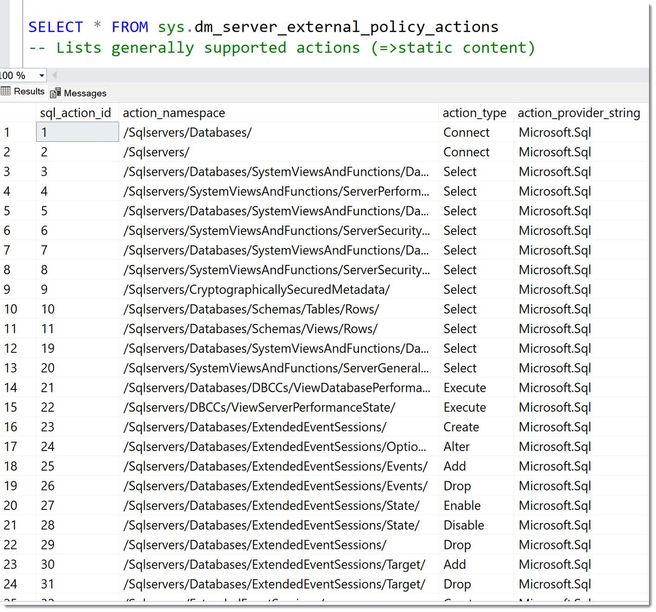
sys.dm_server_external_policy_actions and sys.dm_database_external_policy_actions
List all available Data actions, independently of them being used or not (basically static, returns what could be used)
The result will look like this:
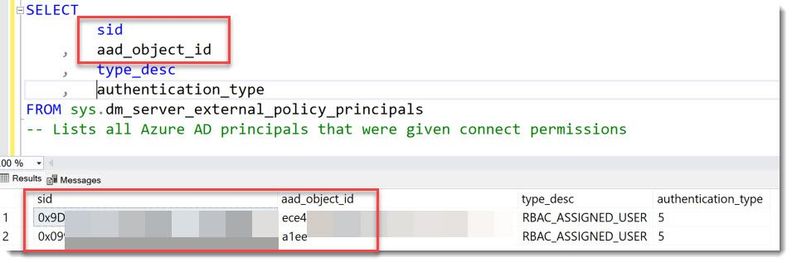
sys.dm_server_external_policy_principals and sys.dm_database_external_policy_principals
Contain a list of all principals (all types of AAD Accounts) that have at least the Connect-Action assigned to them.
Concerning the SID
Currently the external_policy_DMVs only return SIDs not the User names from AAD. And there are 2 formats in which we expose them:
- The column sid: it contains the SID in the format that SQL Server uses and can be used to join with for example sys.dm_exec_sessions and other objects that return Windows or AAD Login SIDs.
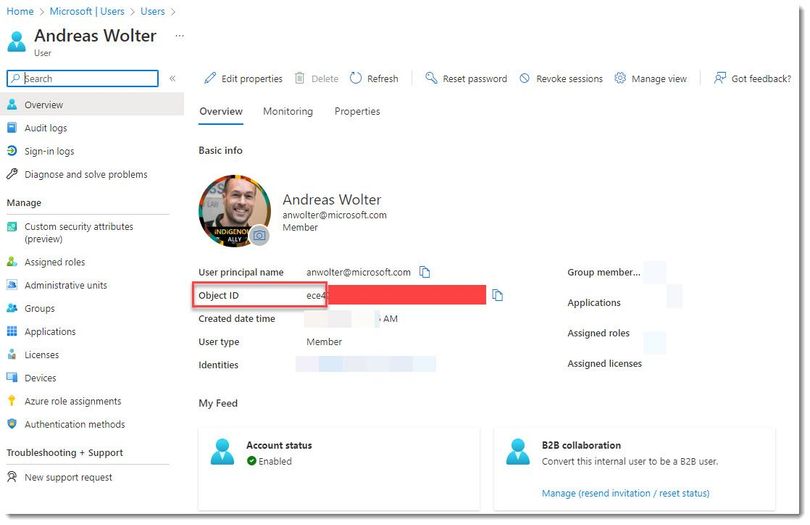
- The column aad_object_id: this column contains the SID that is used by Azure Active Directory for the Object ID. The reason is that this is the format that Microsoft Purview policies use internally.
You can see the Object ID belonging to each account in the Azure portal for example here:
sys.dm_server_external_policy_roles and sys.dm_database_external_policy_roles
All external roles (aka Action Groups in Purview) that are in use for the current scope (server or database)
sys.dm_server_external_policy_role_members and sys.dm_database_external_policy_role_members
Link external_principals with external_roles -> can be used to join those DMVs
This DMV also contains the scope at which the role is applied. Remember that your server may reside in some Resource Group in Azure where the policies are applied, instead of policies being applied on a per-server basis (that would usually be a bad design choice).
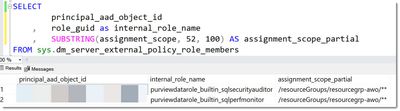
sys.dm_server_external_policy_role_actions and sys.dm_database_external_policy_role_actions
Link external_actions with external_roles -> can be used to join those DMVs
How to query all at once:
To get a useful, informative result, you will want to join those views. To spare you that work, we have created one more set of DMVs that do that for you:
sys.dm_server_external_policy_principal_assigned_actions and sys.dm_database_external_policy_principal_assigned_actions
This set of views joins all 5 views that I explained above and as a result lists the AAD accounts (currently just the SIDs) together with the external roles they are assigned to and the data actions that those roles provide.
The result can look like this:
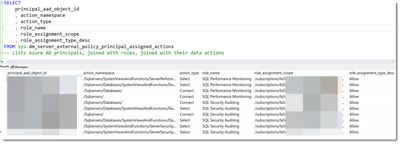
Now you can see from one query, which AAD Account (the SIDs) has which Actions granted to it and which role this is coming from and on what level of the Resource hierarchy this role is applied to.
How to detect Users connecting via policy-based permissions
Often, as a DBA or Auditor, you will want to understand how a certain User that you see in the system was able to connect and what its permissions are.
In this case you are most likely looking at either sys.dm_exec_sessions (sys.dm_exec_sessions (Transact-SQL) ), often joined with sys.dm_exec_requests ( sys.dm_exec_requests (Transact-SQL) ), both being DMVs that exist since a long time before external policies came into play.
Since policy-backed accounts are not persisted in SQL Server Catalog views like sys.server_principals or sys.database_principals, you would now start using sys.dm_database_external_policy_principals and sys.dm_server_external_policy_principals to make sure to find these accounts. And starting from there you can find out which Actions they have been assigned – using the DMVs that I explained above.
To join sys.dm_exec_sessions with the new external_policy-DMVs you can use the column security_id (aka SID).
In the following screenshot you can see all currently logged in AAD Accounts that have a Policy assigned to them as indicated by the “RBAC_ASSIGNED_USER” in the type-field.
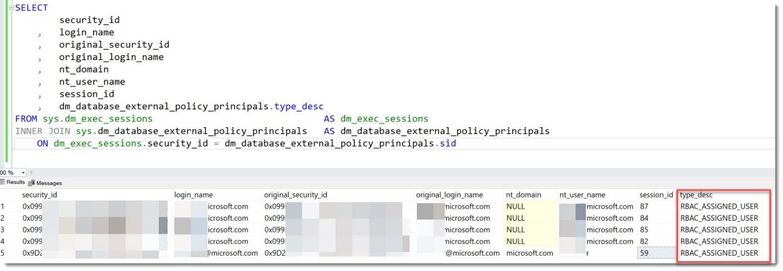
Of course you will still also enumerate all accounts that may exist as traditional “External Login from Azure Active Directory” using sys.server_principals.
It is quite possible that an AAD Account has a Login in SQL in addition to a Policy assigned to it. So don’t be surprised to find entries in both the new external_policy– and the old server_principals system views.
Here is how that could look:
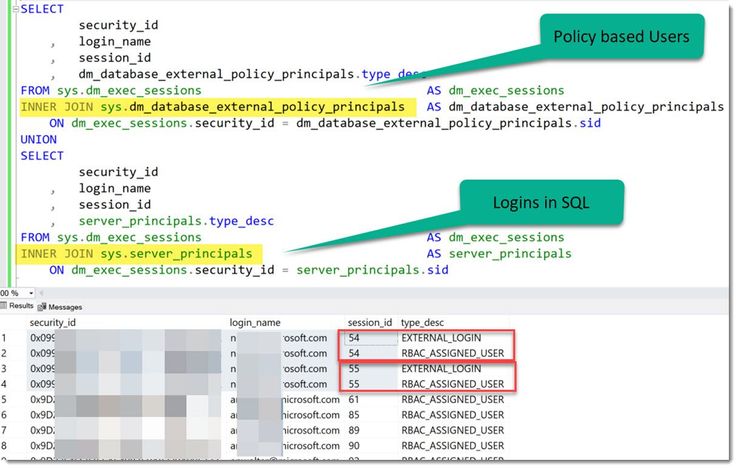
As you can see marked in red boxes, the sessions 54 and 55 are listed twice, since I am joining with both DMVs and find an entry for both a Login based on AAD (EXTERNAL_LOGIN) and the same account also is assigned to a Policy, hence “RBAC_ASSIGNED_USER” as the metadata calls it.
This is logical and important, since the traditional Login (and potential Database-Users) can have additional permissions granted directly in SQL.
How to check for possible performance-impact on the system or queries
Lastly, once we understand that hopefully all access makes sense, there are cases where you will want to understand which possible impact the policy cache, the updates and calls to it may have.
There are 3 areas to look at.
DMVs
Besides sys.dm_external_policy_cache which I explained above, you can monitor the Memory Clerk that the Purview SDK uses through the existing sys.dm_os_memory_clerks.
That will show you the amount of memory used by the SDK. You can find the Memory clerk with this query:
SELECT pages_kb/1024.0 AS [SizeMB], *
FROM sys.dm_os_memory_clerks
WHERE type = ‘MEMORYCLERK_EXTERNAL_GOVERNANCE_AUTHORIZATION_ENGINE’
Note on Preview-version
In the Preview-version and currently in Azure SQL Database, this Clerk-type is named “MemoryClerk RBAC” for historical reasons. Below this article I have listed all object names that are used in the Preview version.
Wait-Types
Analyzing Wait-Stats is an essential part of system-investigation. Waits are a normal part of any system but depending on the operation that the system is waiting for, abnormal high waits can point to underlying issues.
Server-wide waits are queried via sys.dm_os_wait_stats and in Azure SQL Database using sys.dm_db_wait_stats or on a session-level via sys.dm_exec_session_wait_stats. If you are not familiar with this concept, start here: sys.dm_os_wait_stats (Transact-SQL) | Microsoft Learn
The following Wait-types have been introduced in the preview version of Purview integration:
|
Wait Type |
Description |
|
WAIT_EXTERNAL_GOVERNANCE_PERMCACHE_RESOURCELOCK |
Occurs during a read/write lock on the permission cache, used for the response from the Purview SDK on a permission-lookup. |
|
WAIT_EXTERNAL_GOVERNANCE_PERMCACHE_DECISIONLOCK |
Occurs during a read/write lock on the permission cache, used for the response from the Purview SDK during evaluation of an AAD principal for a data action. |
|
WAIT_EXTERNAL_GOVERNANCE_POLICY_AAD_GROUP_INFO |
Occurs during waiting on internal lock on a map for caching AAD Group IDs for AAD Users. |
|
PURVIEW_POLICY_SDK_PREEMPTIVE_SCHEDULING |
Occurs during calls to Purview SDK. Scheduling is switched to preemptive mode. It will occur after PWAIT_PREEMPTIVE_OS_AUTHENTICATEDWEBCALL. |
|
WAIT_EXTERNAL_GOVERNANCE_POLICY_PROVIDER |
Occurs during a read/write lock on the policy provider cache while accessing the stored policies in memory. |
|
EXTERNAL_GOVERNANCE_POLICY_UPDATE |
Occurs during updates of the policy cache on a pull task run. |
|
WAIT_EXTERNAL_GOVERNANCE_POLICY_SESSION_AUDIT |
Lock to synchronize access to an active session’s audit information containing audited external permission evaluation and their outcome together with applicable policy id and version. |
|
WAIT_EXTERNAL_GOVERNANCE_POLICY_SESSIONS_AUDIT |
Lock to synchronize allocation of, or access to Purview permissions audit information object for a session. |
|
EXTERNAL_GOVERNANCE_PULL_TASK |
Occurs if there is a background pull task running and a user manually initiates a pull at the same time. This wait type shows up until the background task is done, before the user initiated one can be started. |
Therefore, a query to retrieve just those could look like:
SELECT * FROM sys.dm_os_wait_stats
WHERE wait_type IN
( ‘WAIT_EXTERNAL_GOVERNANCE_PERMCACHE_RESOURCELOCK’
, ‘EXTERNAL_GOVERNANCE_PULL_TASK’
, ‘EXTERNAL_GOVERNANCE_ATTR_SYNC_BACKGROUND’
, ‘PURVIEW_POLICY_SDK_PREEMPTIVE_SCHEDULING’
, ‘WAIT_EXTERNAL_GOVERNANCE_POLICY_AAD_GROUP_INFO’
, ‘WAIT_EXTERNAL_GOVERNANCE_PERMCACHE_RESOURCELOCK’
, ‘WAIT_EXTERNAL_GOVERNANCE_PERMCACHE_DECISIONLOCK’
, ‘WAIT_EXTERNAL_GOVERNANCE_POLICY_PROVIDER’
, ‘WAIT_EXTERNAL_GOVERNANCE_POLICY_SESSION_AUDIT’
, ‘WAIT_EXTERNAL_GOVERNANCE_POLICY_SESSIONS_AUDIT’
);
From those, the one that will most likely be on top always, is PURVIEW_POLICY_SDK_PREEMPTIVE_SCHEDULING. Since this happens in a background-process (unless you force the cache update manually), this should normally not be an issue. On my server I have a max wait time of 15 ms over multiple weeks.
Extended Events
All the information from DMVs is looking at data at a certain point in time.
So for example you can get the timestamp of the last time that the cache was updated, and the wait-time accumulated until when your query is running.
But sometimes you will want to run a so-called trace, to log specific events over a certain timespan. That’s where Extended Events aka XEvents come into play. To assist you in tracing policy related information, we created the following new events that can be captured:
|
XEvent and Description |
Event Fields |
|
external_governance_policy_pulltask_started * XEvent for policy pull start |
policy_pull_type – FULL = Reload, DELTA = Update service_endpoint_uri |
|
external_governance_policy_pulltask_retries * XEvent for policy pull diagnostics |
Message – Internal status message retry_number |
|
external_governance_policy_pulltask_finished * XEvent for policy pull finish |
modified_policy_elements_information – these fields are only useful for internal Microsoft engineers |
|
external_governance_call_to_authorization_engine * a call to external governance SDK is made |
database_id – self-explanatory data_action – internally used ID for Data action – i.e. 0 = Connect on Database, 1 = Connect on Server external_governance_decision – 0 = Permit, 1 = Deny |
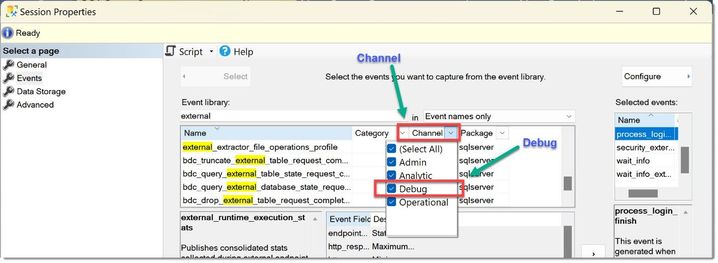
All these events from external governance tasks are under the Debug-channel. Therefore, if you are searching for these events in the UI, you need to activate that channel to see them – as shown in the below screenshot:
In addition to new events we also include a new field in the process_login_finished–event to help you understand whether a connection was allowed or denied due to policy-based permissions.
|
Existing event |
New Event Field |
|
process_login_finish |
external_governance_policy_authorization – this returns one of 3 values, depending on if the session that logged in was authenticated via an external policy Connect-Action: 0 = NotApplicable, 1 = Permit or 2 = Deny |
To help you get started I am also attaching a file that contains an XEvent session including all of these events to this article.
Here is an example result of tracing a single policy-update call with XEvents:
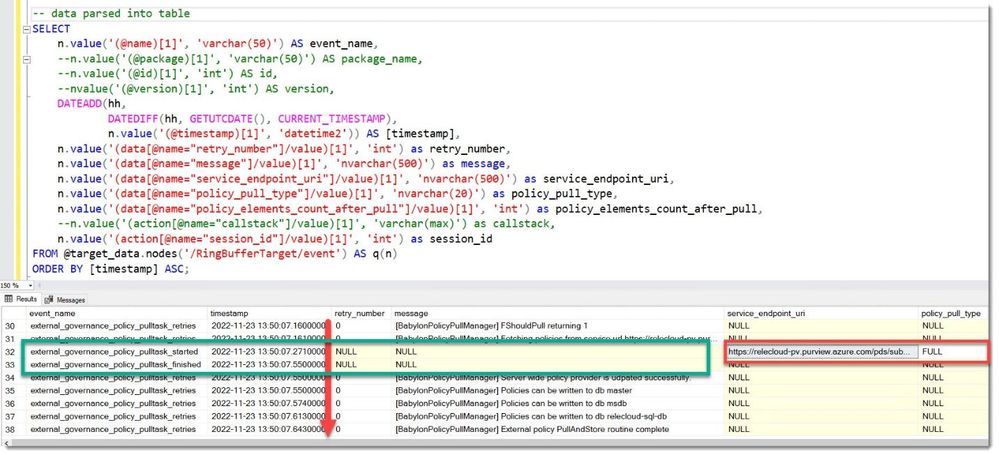
Marked in red you can see the Pull type = “Full” which corresponds to “Reload” and the Endpoint URI of the Purview Service used by my server.
The green box marks the events that encompass the actual “pulling” of policies from the Purview service. The events are external_governance_policy_pulltask_started and external_governance_policy_pulltask_finished. The events before are part of the initialization process and those after cover the updates to the database-specific caches.
Note
In the example I am using the RingBuffer-Target for XEvents which stores the traced events in memory. That is sufficient for a low-impact ad-hoc analysis. For longer running traces you should work with the file-target.
XEvents are stored in XML format, so to present it in tabular format I am using the nodes-Method for the XML data type.
Further reading
XEvents overview – SQL Server, Azure SQL Database, and Azure SQL Managed Instance | Microsoft Learn
nodes() Method (xml Data Type) | Microsoft Learn)
Hopefully this is useful.
As this is a new functionality, the security team is very interested in feedback concerning usability and visibility and what we can do to make your life as DBA, Auditor or Developer easier. You can reach out to me using my Firstname dot LastName At Microsoft.com
Happy securing
Andreas
Thank you to the following people for help with this article:
Vlad Rodriguez (Senior Program Manager Purview), Joshua Glassmyer (Program Manager Azure SQL Security), Jakub Szymaszek (Principal Program Manager Azure SQL Security), Srdan Bozovic (Senior Program Manager Azure SQL Security), Sailesh Duvvuri (Senior Software Engineer Purview)
Appendix: Preview release names
Memory Clerk in Azure SQL Database Preview release:
SELECT pages_kb/1024.0 AS [SizeMB], *
FROM sys.dm_os_memory_clerks
WHERE type = ‘MEMORYCLERK_RBAC’
Wait-Type names in Azure SQL Database Preview release:
|
Wait Type |
Description |
|
WAIT_EXTGOV_PERMCACHE_RESOURCELOCK |
Occurs during a read/write lock on the permission cache, used for the response from the Purview SDK on a permission-lookup. |
|
WAIT_EXTGOV_PERMCACHE_DECISIONLOCK |
Occurs during a read/write lock on the permission cache, used for the response from the Purview SDK during evaluation of an AAD principal for a data action. |
|
RBAC_AAD_GROUP_INFO |
Occurs during waiting on internal lock on a map for caching AAD Group IDs for AAD Users. |
|
PURVIEW_POLICY_SDK_PREEMPTIVE_SCHEDULING |
Occurs during calls to Purview SDK. Scheduling is switched to preemptive mode. It will occur after PWAIT_PREEMPTIVE_OS_AUTHENTICATEDWEBCALL. |
|
WAIT_RBAC_PROVIDER |
Occurs during a read/write lock on the policy provider cache while accessing the stored policies in memory. |
|
BABYLON_POLICY_UPDATE |
Occurs during updates of the policy cache on a pull task run. |
|
WAIT_RBAC_SESSION_AUDIT |
Lock to synchronize access to an active session’s audit information containing audited external permission evaluation and their outcome together with applicable policy id and version. |
|
WAIT_RBAC_SESSIONS_AUDIT |
Lock to synchronize allocation of, or access to Purview permissions audit information object for a session. |
|
BABYLON_PULL_TASK |
Occurs if there is a background pull task running and a user manually initiates a pull at the same time. This wait type shows up until the background task is done, before the user initiated one can be started. |
Matching SQL query:
SELECT * FROM sys.dm_os_wait_stats
WHERE wait_type IN
( ‘WAIT_EXTGOV_PERMCACHE_RESOURCELOCK’
, ‘WAIT_EXTGOV_PERMCACHE_DECISIONLOCK’
, ‘RBAC_AAD_GROUP_INFO’
, ‘PURVIEW_POLICY_SDK_PREEMPTIVE_SCHEDULING’
, ‘WAIT_RBAC_SESSION_AUDIT’
, ‘WAIT_RBAC_SESSIONS_AUDIT’
, ‘WAIT_RBAC_PROVIDER’
, ‘BABYLON_POLICY_UPDATE’
);
XEvent names in Azure SQL Database Preview release:
|
Xevent and Description |
|
external_policy_pulltask_started XEvent for policy pull start |
|
external_policy_pulltask_retries XEvent for policy pull diagnostics |
|
external_policy_pulltask_finished XEvent for policy pull finish |
|
security_external_governance_call a call to external governance SDK is made |
How SQL Server Checks Permissions: Internals of the SQL Server 2022 Permission System
If you have not read about it before, we recently made some deep changes within the permissions of SQL Server. The two most relevant announcements are here:
New granular permissions for SQL Server 2022 and Azure SQL to improve adherence with PoLP
In this article I want to share some more details on why and how we changed the access check code. The answers are less straight-forward than one may think, and some of you may find it interesting.
minor update, Oct 17/2022
In the original article I listed the following Action being part of the Azure Purview for the built-in action-group “SQL Performance Monitor”:
/SqlServers/SystemViewsAndFunctions/ServerSecurityState/Rows/Select
this is incorrect. That Action is part of the “SQL Security Auditor”-role. The correct Action for the “SQL Performance Monitor” is
/Sqlservers/Databases/SystemViewsAndFunctions/DatabasePerformanceState/Rows/
The Why
1)
The first part of the answer to the question “Why?” is quite straightforward: we want to make it easier for customers to adhere to the Principle of Least Privilege (explained here: Security: The Principle of Least Privilege / POLP). And for that we need to create permissions that are more specific, in other words, cover more granular operations than before.
In the announcement-article (New granular permissions for SQL Server 2022 and Azure SQL to improve adherence with PoLP) I also explain a bit how I approached this when we worked on the permissions that cover viewing system metadata:
By keeping a balance between increased security and increase of complexity. The main take-away is, that rather than coming up with a new permission for every individual object, which surely would have driven everyone crazy, we decided to group all these system objects into 2 groups: those which expose information about the security-state of the system – and all the rest. This “all the rest” is covered under the new permission-name PERFORMANCE STATE respectively PERFORMANCE DEFINITION. That way it is possible to keep personae that work on troubleshooting performance and related issues away from gaining insights into the security state of the system.
2)
But there is a second reason that plays a vital role in this undertaking, which has additional implications as you will see:
At the same time as I was responsible for the SQL Server permission system in general, I was also working on a second project: Integrate external policies from Azure Purview to use for access control into SQL Server.
(This new feature was announced here: controlling access to Azure SQL at scale with policies in Purview)
To achieve that, the SQL Server engine permission evaluation algorithm had to be extended to allow permission-checks based on external policies. Policies which are received from Azure Purview contain so-called “Actions,” which can be either allowed or denied.
As you read above, to change the old SQL permissions to the new more granular permissions on system objects, we had to go through each and every permission check already.
Realizing this potential to “Kill two birds with one stone” (no actual birds were harmed in the process, I swear), I convinced the team that doing both changes at the same time would in the long-term safe us a lot of time. Plus, the chances that someone else would want to touch the same code later again would be much lower. While of course doing both at once still added some overhead comparing this to changing the very same code paths later would have been much more extra work.
Therefore, I am glad that the team followed through on that, despite this being unexciting, repetitive work on these 800+ objects.
The undertaking
The main work went into the splitting of permissions for viewing system metadata, which is exposed via (A) Dynamic Management View (DMVs (Dynamic Management Views)) and Dynamic Management Functions (DMFs) for information that is often generated at runtime and (B) Catalog Views for static information.
By splitting, I am referring to the fact that was once covered by (the minimum) permission VIEW DATABASE STATE is now either covered by VIEW DATABASE PERFORMANCE STATE or VIEW DATABASE SECURITY STATE and other 3 splits that we did in this area. The new permissions (see New granular permissions for SQL Server 2022 and Azure SQL to improve adherence with PoLP for details) are lower permissions than the former minimum permissions and at the same time they are still covered by the respective former permissions which are now parent permissions.
These changes of permission requirements naturally required a huge effort by the engineering team that entailed adding new Permission checks for currently about 800 System Objects (DMVs, Catalog Views and DMFs) (!) based on my specification.
- Here it helped that until not long ago I have worked extensively in the space of SQL Server system analysis for about 18 years and working with these objects was my daily bread & butter :).
Big Kudos to all the involved engineers, for fighting through it to the end and not giving up at the sight of this enormous task!
How VIEW SERVER STATE was split up and onboarded to external policies control
Let’s look at a specific example, which can serve as a blueprint for all the changes that we did: Splitting up the SQL permission VIEW SERVER STATE and onboarding it to allow external policy-based checks.
When VIEW SERVER STATE is granted to a Login, this Login (aka the grantee) can read data from Dynamic Management Views (and -Functions) on the server – hundreds of them.
To do that the user will run a command like SELECT * FROM sys.dm_exec_requests.
But there is more: this permission also grants access to some System Stored Procedures such as sys.sp_readerrorlog. For that, the command EXECUTE sys.sp_readerrorlog is used.
And then there are DBCC Commands such as DBCC SQLPERF(NETSTATS) which again have a different syntax.
Explainer: Permissions vs Actions
Before we get into the next part of the work, I need to make sure everyone understands the difference between SQL permissions and so-called actions.
In policy-based access control systems (such as ABAC (attribute-based access control), Attribute-based access control and Azure IAM (Identity & Access Management) RBAC (role-based access control)), usually the term “action” is used instead of permission (also see: Attribute-based access control – Wikipedia). Inside the policy definition, an action is just another attribute, next to subjects (Users) or Object attributes
The difference between action and permission is that actions refer to a specific “operation” like i.e., “read” or “add” or “create.”
On the other hand, a permission is really just an arbitrary name that implies one or more operations to be permitted.
Example
In SQL Server there is a permission called “CONTROL” which can be granted on a database.
But there is no operation in T-SQL (Transact-SQL) that is called “Control” (this is the “arbitrary”-part). Instead, this permission allows the granted user (aka grantee) to run a multitude of commands (“one or more”). In fact, in this specific case almost any command that is available inside a database. It could be anything from a SELECT FROM TableX to ALTER DATABASE.
This hierarchy of SQL permissions is depicted below:
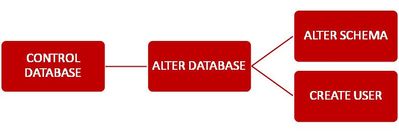
The fact that a permission can allow “one or more” different operations is the most important differentiator between actions and permissions – the latter of which the SQL Server engine used exclusively up until now.
A policy-based permission system that uses actions usually has a separate action for each different operation and those are independent from each other. So-called “covering” permissions, as many traditional database-systems use create challenges for PoLP-compliance and are not commonly used in more modern policy-based access control systems.
This could lead to the following flat list of permissible actions:
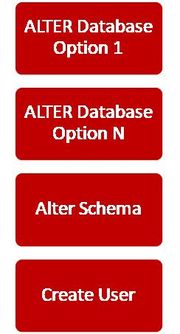
Note
While actions themselves are not hierarchical, the objects that they are applied to can and should very well be hierarchically organized. The ability to assign a policy at higher levels of resource-hierarchies, such as subscription or a resource group in Azure, allows for efficient access control without micro-managing individual objects. The same is true within SQL Server Databases where a SELECT-permission granted on a whole database would allow selecting all tables in all schemas.
With this background, it is not hard to guess, that a rich RDBMS such as SQL Server which serves as a platform for many internal and external services and functionalities is hard to bring in line with a concept of atomic actions. I.e. if every single DMV (dynamic management views), system stored procedure or DBCC Command would lead to an individual action, we may have done it according to the books, but the result would be a nightmarish pile of individual actions that would lead to extremely large and unreadable policies.
The solution was to decide on a middle ground that does not compromise on security but keep the ability to express policies manageable.
And this is how it turned out:
SQL Permission changes
The VIEW SERVER STATE permission was split into 2 new permissions:
VIEW SERVER PERFORMANCE STATE and VIEW SERVER SECURITY STATE.
Here the new and old permissions both on Server and on Database level are visualized:
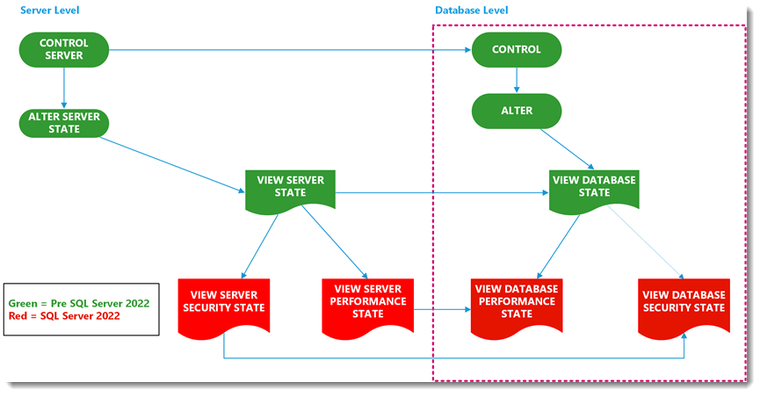
In addition to that, we introduce a new permission: VIEW ANY ERROR LOG.
It covers the following system stored procedures:
sys.xp_enumerrorlogs
sys.sp_readerrorlog
sys.xp_readerrorlog
For the DBCC Commands in the SQL world we keep them under the same VIEW SERVER PERFORMANCE STATE -permission as used for accessing DMVs. This is a small concession to simplicity since it is unlikely that users who are tasked with performance analysis and hence get access to DMVs etc. would not be allowed running these read-only DBCC-commands. This way we save 1 permission in SQL for the price of a small misalignment with the policy-based action as you will see below.
Result: 3 new permissions
New actions for policy-based access control
To express the same as the SQL permissions above permit, we created the following actions to be used by Azure Purview for the built-in action-group “SQL Performance Monitor”:
/SqlServers/SystemViewsAndFunctions/ServerPerformanceState/Rows/Select
/Sqlservers/Databases/SystemViewsAndFunctions/DatabasePerformanceState/Rows/Select
/SqlServers/ErrorLogs/Select
/Sqlservers/DBCCs/ViewServerPerformanceState/Execute
/Sqlservers/Databases/DBCCs/ViewDatabasePerformanceState/Execute
Result: 5 new actions
As you can see here, the use action-names partially align to the SQL permission names that closely match their behavior. In the case of the DBCC commands, we have introduced 2 additional actions as a concession to the action-based model and language.
More Details
Now that we understand the background and the overall idea of working with permissions and actions in parallel, let us see how these checks are implemented inside the SQL engine.
If a given SQL Server is governed by Azure Purview, the server is regularly connecting to the external Microsoft Azure Purview Service and downloads all the relevant policies to a local cache. These policies contain all the required information to match an AAD (Azure Active Directory) Account with the allowed or denied actions.
If the user is running a query that contains objects that are onboarded for external governance, the permission-check will include both the SQL permissions and the external policy-based actions.
Below is a picture of the high-level architecture of this workflow:
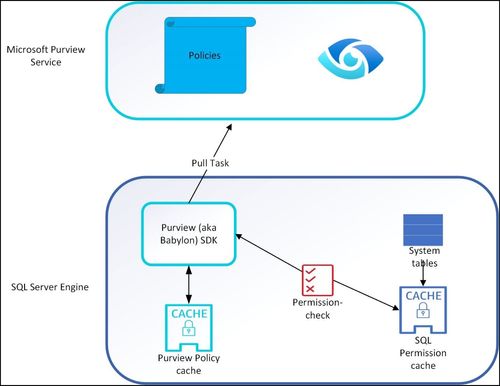
On a high-level, extending existing permission checks to check for new SQL-permissions and at the same time check for new external permissions, the respective locations in code only had to be touched once for both at the same time.
The new permission checks algorithms are based on OR-logic. For example, a user executing the query
SELECT * FROM sys.dm_os_waiting_tasks
traditionally would undergo a permission check with the following logic:
Is there no DENY for:
(SQL permission) VIEW SERVER PERFORMANCE STATE
AND
is there a GRANT for:
SQL permission VIEW SERVER PERFORMANCE STATE
- There is a check for a DENY on the respective permission, and if that is not the case, the principal still requires an explicit GRANT
Now, in SQL Server 2022 and Azure SQL Database, all the commands that we onboarded to allow externally based permissions/actions, will undergo a permission-check with the following new extended logic:
is there no DENY for:
{
(SQL permission) VIEW SERVER PERFORMANCE STATE
OR
(External Policy Action) SqlServers/SystemViewsAndFunctions/ServerPerformanceState/Rows/Select
}
AND
is there a GRANT for:
{
SQL permission VIEW SERVER PERFORMANCE STATE
OR
(External Policy Action) /SqlServers/SystemViewsAndFunctions/ServerPerformanceState/Rows/Select
}
- Note: the actual source code does not look like this, this is a strong simplification 🙂
As you can see, we are simply allowing multiple sources to satisfy the condition using an OR-logic.
You can also see this in the new error messages that only start appearing after enabling a server for external governance. For example, if a user does not have either permission, the error message reveals the 2 possible alternatives:
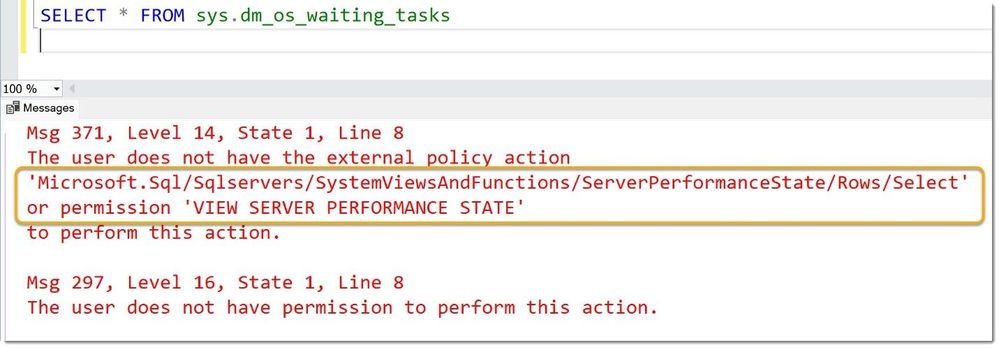
I hope this sheds some light on how things are working and why they are working this way in the permission space.
Happy securing
Andreas